CHFI

Learn All About Linux File Systems

In this blog explain Linux File System Architecture, File system Hierarchy atandard (FHS), Extended File System (EXT), Second Extended File System (EXT2), Second Extended File System (EXT2) (Cont’d), Second Extended File System (EXT2) (Cont’d) etc…

Linux OS uses different file systems to store the data. As the investigators may encounter the attack source or victim systems to be running on Linux, they should have comprehensive knowledge regarding the storage methods it employs. The following section will provide you a deep insight about the various Linux file systems and their storage mechanisms.

Linux File System Architecture

The Linux file system architecture consists of two parts namely:

  • User Space: The protected memory area where the user processes run and this area contains the available memory.
  • Kernel Space: The memory space where the system supplies all kernel services through kernel processes. The users can access this space through the system call only. A user process turns into kernel process only when it executes a system call.

Related Product : Computer Hacking Forensic Investigator | CHFI

The GNUC Library (glibc) sits between the User Space and Kernel Space and provides the system call interface that connects the kernel to the user-space applications.

The Virtual file system (VFS) is an abstract layer, residing on top of a complete file system. It allows client applications to access various file systems. Its internal architecture consists of a dispatching layer which provides file system abstraction and numerous caches to enhance the file system operations performance.

The main objects managed dynamically in the VES are the dentry and inode objects in cached manner to enhance file system access speed. Once a user opens a file, the dentry cache fills with entries that represent the directory levels which in turn represent the path. The system also creates an inode for the object which represents the file. The system develops a dentry cache using a hash table and allocates the dentry cache entries from the dentry_cache slab allocator. The system uses a least-recently-used (LRU) algorithm to prune the entries when the memory is scarce.

The inode cache acts as two lists and a hash table for quick look up. The first list defines the used inodes and the unused ones are positioned in the second list. The hash table also stores the used inodes.

Device drivers are pieces of code, linked with every physical or virtual device and help the OS in managing the device hardware. Functions of the device drivers include setting up hardware, getting the related devices in and out of services, getting data from hardware and giving it to the kernel, transferring data from the kernel to the device, and identifying and handling device errors.

Filesystem Hierarchy atandard (FHS)

Linux is a single hierarchical tree structure, representing the file system as one single entity. It supports many different file systems. It implements a basic set of common concepts, developed for UNIX. Some of the Linux file system types are minix, Filesystem Hierarchy Standard (FHS), ext, ext2, ext3, xia, msdos, umsdos, vfat, /proc, nfs, iso 9660, hpfs, sysv, smb, and ncpfs. Minix was Linux’s first file system.

The following are some of the most popular file systems:

Filesystem Hierarchy Standard (FHS)

The File system Hierarchy Standard (FHS) defines the directory structure and its contents in Linux and Unix-like operating systems. In the FHS, all files and directories are present under the root directory (represented by /).

Extended File System (EXT)

The Ext file system, released in April 1992, is the first file system developed for Linux. It came as an extension of the Minix file system and to overcome some of its limitations such as 64 MB partition size and short file names. The Ext file system provides a maximum partition size of 2 GB and a maximum file name size of 255 characters. The major limitation of this file system was that it did not offer support for separate access, inode modification, and data modification timestamps. It kept an unsorted list of free blocks and inodes, and fragmented the file system.

This has a metadata structure inspired by Unix File System (UFS). Other drawbacks of this file system include only one timestamp and linked lists for free space, which resulted in fragmentation and poor performance. The second extended file system (Ext2) replaced it.

Second Extended File System (EXT2)

Remy Card developed the second extended file system (ext2) as an extensible and powerful file system for Linux. Being the most successful file system so far in the Linux community, Ext2 is the basis for all of the currently shipping Linux distributions.

Read More : https://info-savvy.com/learn-all-about-linux-file-systems/


This Blog Article is posted by

Infosavvy, 2nd Floor, Sai Niketan, Chandavalkar Road Opp. Gora Gandhi Hotel, Above Jumbo King, beside Speakwell Institute, Borivali West, Mumbai, Maharashtra 400092

Contact us – www.info-savvy.com
CHFI

New Technology File System (NTFS) – an Overview

 In this blog explain New Technology File System | NTFS (NT file system) is the file system that the Windows NT operating system uses for storing and retrieving files on a hard disk.

New Technology File System (NTFS) is one of the latest file systems supported by Windows. It is a high-performance file system, which repairs itself; it supports several advanced features such as file-level security, compression, and auditing. It also supports large and powerful volume storage solutions such as self-recovering disks.

NTFS provides data security as it has the capability to encrypt or decrypt data, files, or folders. NTFS uses a 16-bit Unicode method to character set naming of files and folders. This attribute of NTFS allows users around the world to manage their files in their native languages. It has fault tolerance for the file system. If the user makes any modifications or changes to the files, NTFS makes a note of all changes in specific log files. If the system crashes, NTFS uses these log files to restore the hard disk to a reliable condition with minimal data loss. NTFS also provides the concept of metadata and master file tables. Metadata contains the information about the data stored in the computer. A master file table also contains the same information in a tabular form, but its capacity to store data in its table is comparatively less.

NTFS uses the Unicode data format. NTFS has many versions and they are as follows:

  • v1,0 (found in Windows NT 3.1), v1.1 (Windows NT 3,5), and v1.2 (Windows NT 3.51 and Windows NT 4)
  • 0, found in Windows 2000
  • 1, found in Windows XP, Windows Server 2003, Windows Vista, and Windows 7
  • These final three versions are sometimes referred to as v4.0, v5.0, and v5.1

Features of NTFS include

  • Uses b-tree directory scheme to store information about file clusters
  • Stores the information about a file’s clusters and other data within the cluster
  • Supports files up to 16 billion bytes in size approximately
  • An access control list (ACL) allows the server administrator to access specific files
  • Integrated file compression
  • Data security on both removable and fixed disks

NTFS Architecture

At the time of formatting the volume of the file system, the system creates Master Boot Record. it contains some executable code called a master boot code and information about the partition table for the hard disk. When a new volume is mounted, the Master Boot Record runs the executable master boot code. It also transfers control to the boot sector on the hard disk, which allows the server to boot the operating system on the file system of that particular volume. Components of the NTFS architecture are as follows:

  • Hard disk: It contains one or more partitions
  • Master Boot Record: It contains executable master boot code that the computer system BIOS loads into memory; this code is used to scan the Master Boot Record to locate the partition table to find out which partition is active/bootable
  • Boot sector: It is a bootable partition that stores data related to the layout of the volume and the file system structures
  • dll: It reads the contents of the Boot.ini file
  • sys: It is a computer system file driver for NTFS
  • Kernel mode: It is the processing mode that permits the executable code to have direct access to all the system components
  • User mode: It is the processing mode in which an executable program or code runs

NTFS System Files

NTFS has many system files stored in root directory of the NTFS volume that store file system metadata.

NTFS Partition Book Sector

In an NTFS volume, system allocates the first 16 sectors to the boot metadata file and the next 15 sectors to the boot sector’s initial program loader OK). The first sector, which is a boot sector, contains the bootstrap including the file system type, size, and location of NUS data. The last sector contains an extra copy of the boot sector in order to increase file system reliability

The following instance demonstrates the boot sector of the NIB volume, formatted on Windows 2000. The layout has three parts, and they are as follows:

  • Bytes 0x00-0x0A constitute the jump instruction and the OEM ID
  • Bytes OxOB-0x53 are the BIOS parameter block BPB) and the extended BPB
  • The remaining code is the bootstrap code and the end of the sector marker

Read More : https://info-savvy.com/new-technology-file-system-ntfs-an-overview/


This Blog Article is posted by

Infosavvy, 2nd Floor, Sai Niketan, Chandavalkar Road Opp. Gora Gandhi Hotel, Above Jumbo King, beside Speakwell Institute, Borivali West, Mumbai, Maharashtra 400092

Contact us – www.info-savvy.com
CHFI

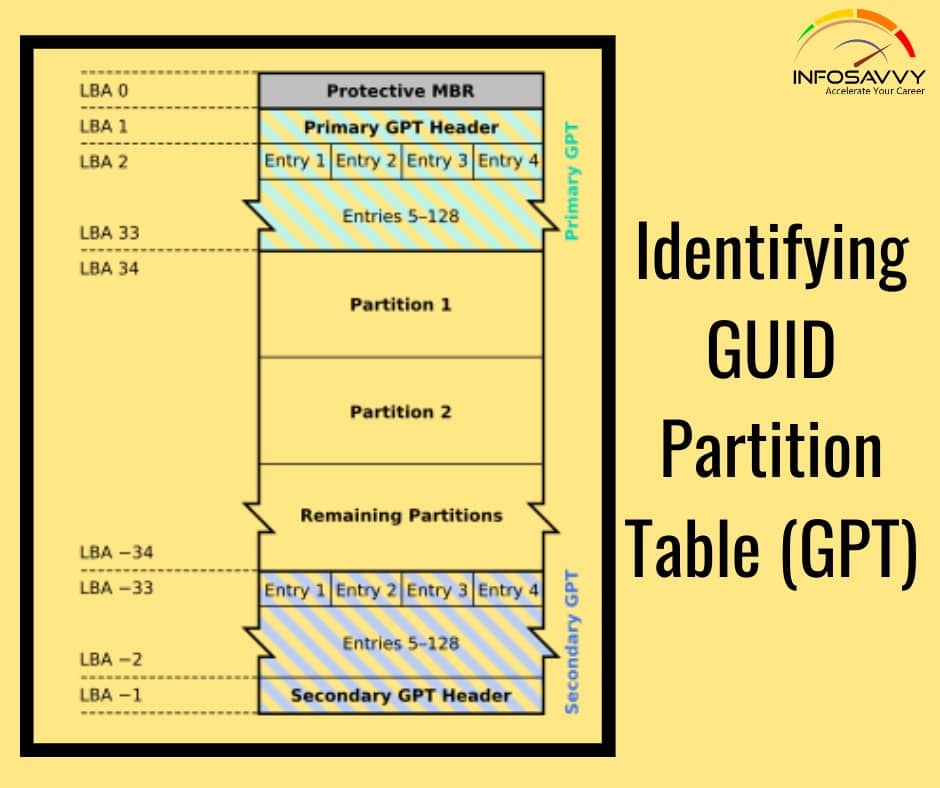
Identifying GUID Partition Table (GPT)

Identifying GUID Partition Table (GPT) in this GPT header will help an investigator analyze the layout of the disk including the locations of the partition table, partition area, and backup copies of the header and partition table. Investigators can use cmdlets given below in Windows PowerShell to identify the presence of GPT:

Get-GPT

Get-GPT command helps investigator to analyze the GUID Partition Table data structure of the hard disk. It requires the use of the -Path parameter which takes the Win32 Device Namespace (ex.\\.\ PHYSICALDRIVE1) for the device from which it should parse the GPT.

In case, the investigator uses the Get-CPT on a disk formatted with a Master Boot Record, it will display an error message prompting to use Get-MBR instead.

Alternate Method:

  • Open “Computer Management” application and click “Disk Management” on the left pane. Right-click on the primary disk (here, Disk 0) and then click Properties
  • In the Device Properties window, click ‘Volumes” tab to see the Partition style

Related Product : Computer Hacking Forensic Investigator | CHFI

Identifying GUID Partition Table (GPT) (Cont’d)

1. Get-Boot Sector

The Get-BootSector is a command that can help the investigator parse GPTs of both types of hard disks including the ones formatted with either UEFI or MBR. This command acts as replacement for Get-MBR and Get-GPT cmdlets. Get-BootSector analyzes the first sector of hard drive and determines the formatting type used and then parses the hard drive GPT.

2. Get-PartitionTable

This command analyzes the GUID partition table to find the exact type of boot sector (Master Boot Record or GUID PartitionTable) and displays the partition object.

3. Analyzing the GPT Header and Entries

Most of the operating systems that support GPT disk access come up with a basic partitioning tool, which displays details about CPT partition tables. In windows tools such as DiskPart tool display the partition details, whereas MAC systems use the OS X Disk utility and Linux uses GNU parted tool.

Sleuthkit mmls command can help the investigators to view detailed partition layout for GPT disk along with the MAR details. Alternatively, investigators can gather details about GPT header and partition entries through manual analysis of disk drive using a hex calculation or editing tool called Hex editor.

Also Read : What is the Booting Process?

4. GPT Artifacts

Deleted and Overwritten GUID Partitions

Case 1: In hard disks, the conversion or repartition of the MBR disk to GPT will generally overwrite the sector zero with a protective MBR, which will delete all the information about the old partition table. The investigators should follow the standard forensics methods of searching the filesystems to recover data about the previous MBR partitioned volumes.

Case 2: When conversion or repartition of the GPT to MBR disk takes place, then the GPT header and tables may remain intact based on the tool used. Investigators can easily recover or analyze data of such disk partitions.

Implementation of general partition deletion tools for deletion of partition on the GPT disk might will delete the protective MBR only, which investigators can easily recreate by simply reconstructing the disk.

As per UEFI

 specification, if all the fields in a partition entry have zeroed values, it implies that the entry is not in use. In this case, data recovery about deleted GUID partition entries is not possible.

Read More : https://info-savvy.com/identifying-guid-partition-table-gpt/


This Blog Article is posted by

Infosavvy, 2nd Floor, Sai Niketan, Chandavalkar Road Opp. Gora Gandhi Hotel, Above Jumbo King, beside Speakwell Institute, Borivali West, Mumbai, Maharashtra 400092

Contact us – www.info-savvy.com
CHFI

Hard Disk Partitions

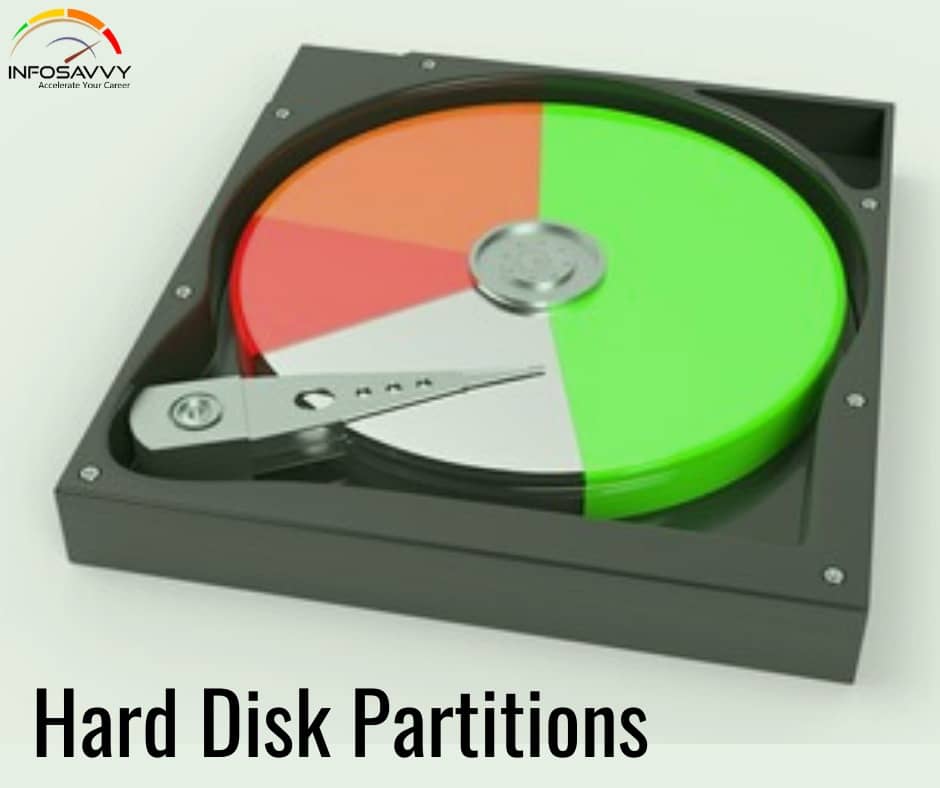
Hard Disk Partitions refers to the creation of logical drives for effective memory management and a partition is the logical drive for storing the data. Hidden partition created on a drive can hide the data. The inter-partition gap is the space between the primary partition and the secondary partition. If the inter-partition drive contains the hidden data, use disk editor utilities like Disk Editor to change the information in the partition table. Doing so will remove all the references to the hidden partition, which have been hiding it from the operating system. Another way of hiding the data is to place the digital evidence at the end of the disk by declaring a smaller number of bytes than the actual size of the drive. Disk Editor allows investigator to access these hidden or vacant areas of the disk.

The partitions are of two types:

  • Primary partition: it is the drive that holds the information regarding the operating system, system area, and other information required for booting. In MS-DOS and earlier versions of Microsoft Windows systems, the first partition (C:) must be a “primary partition,”
  • Extended partition: It is the logical drive that holds the information regarding the data and files that are stored in the disk. Various tools are available for examining the disk partitions. A few of the disk editor tools are Disk Edit WinHex, and Hex Workshop. These tools can help users to view the file headers and important information about the file. Both require analyzing the hexadecimal codes that an operating system identifies and uses to maintain the file system.

BIOS Parameter Block (BPB)

The BPB is data structure situated at sector 1 in the volume boot record of a hard disk and explains the physical layout of a disk volume. It describes the volume partition on partitioned devices such as hard disks, whereas on the un-partitioned devices it describes the entire medium. Any partition that includes the floppy disks can use BPB, which would also describe the basic file system architecture. The length of BPB varies across the listed file systems listed (i.e. FAT16, FAT32, and NTFS) due to the volume of the data it contains and also due to the types of fields present.

Master Boot Record (MBR) 

Master Boot Record (MBR) refers to a hard disk’s first sector or sector zero that specifies the location of an operating system for the system to load into the main storage. Also called as, partition sector or master partition table contains a table, which locates partitioned disk data. A program in the record loads the rest of the OS into the RAM.

Information about various files present on the disk, their location, and size is the Master Boot Record file. In practice, MBR almost always refers to the 512-byte boot sector or partition sector of a disk. FDISK/MBR commands help in creating MBR in Windows and DOS operating systems. When a computer starts and boots, the B105 refers this first sector for the boot process instructions and information about how to load the operating system.

Related Product : Computer Hacking Forensic Investigator | CHFI

The master boot record consists of the structures as mentioned below:

1. Partition Table

Partition table is a 64-byte data structure storing information about the type of partitions present on the hard disk and their location. This table has a standard layout that does not depend on the operating system. The table is capable of describing only four partitions, which are primary or physical partitions. All other partitions are logical partitions linked to one of the primary partitions.

2. Master Boot Code
A small part of the computer code, which the system loads into the BIOS and executes to initiate the system’s boot process. After execution, the system transfers the controls to the boot program present on the active partition to load the operating system.

Read More : https://info-savvy.com/hard-disk-partitions/


This Blog Article is posted by

Infosavvy, 2nd Floor, Sai Niketan, Chandavalkar Road Opp. Gora Gandhi Hotel, Above Jumbo King, beside Speakwell Institute, Borivali West, Mumbai, Maharashtra 400092

Contact us – www.info-savvy.com
CHFI

Understanding Bit, Nibble and Byte

Understanding Bit, Nibble and Byte in this article explained  Bit , Nibble and Byte Data storage format of hard disk with how to calculate it.

Bit

A bit, short for binary digit is the smallest unit of data or basic information unit in computing and digital communications. It can contain only one of the two values represented as 0 or 1. They also represent logical values such as true/false, yes/no, activation states (on/off), algebraic signs (+/-) or any other two-valued attribute.

Byte

A byte, short for binary term is a digital information unit of data that consists of eight bits. The byte is representation of the number of bits a system has used to encode one text character. Therefore, it is the smallest addressable memory unit in many computer architectures. Two hexadecimal digits represent a full byte or octet.

Nibble

A nibble, also known as half-byte or tetrade is a collection of four bits or half of an octet in computing. Common representation of a byte is two nibbles.

Related Product : Computer Hacking Forensic Investigator | CHFI

Hard Disk Data Addressing

Hard disk data addressing is the technique of assigning addresses to physical blocks of data on the hard drives. There are two types of hard disk data addressing:

1. CHS (Cylinder-Head-Sector)

This process identifies individual sectors on a hard disk according to their positions in a track, and the head and cylinder numbers determine these tracks. It associates information on the hard drive by specifications such as head (platter side), cylinder (radius), and the sector (angular position).

2. LBA (Logical Block Address)

It addresses data by allotting a sequential number to each sector of the hard disk. The addressing mechanism specifies the location of blocks of data on computer storage devices and secondary storage systems such as hard disk drives, SCSI, and enhanced IDE drives. This method does not expose the physical details of the storage device to the operating system.

Data Densities on a Hard Disk

Hard disks store data using the zoned bit recording method, which is also known as multiple-zone recording. In this technique, tracks form a collection of zones depending on their distance from the center of the disk and the outer tracks have more sectors on them than the inner tracks. This allows the drive to store more bits in each outer track compared to the innermost zone and helps to achieve a higher total data capacity.

1. Track Density

It refers to the space a particular number of tracks require on a disk. The disks with greater track density can store more information as well as offer better performance.

2. Areal Density

It refers to the number of bits per square inch on a platter and it represents the amount of data a hard disk can hold.

3. Bit Density

It is the number of bits a unit length of track can accommodate.

Also Read : Tracks & Advanced Format of Sectors

Disk Capacity Calculation

Calculate

A disk drive that has:
  • 16,384 cylinders
  • 80 heads
  • 63 sectors per track

Assume a sector has 512 bytes. What is the capacity of such a disk?

Answer :  The conversion factors appropriate to this hard disk are

  • 16,384 cylinders / disk
  • 80 heads / cylinder
  • 63 sectors / track
  • 512 bytes / sector

Solution

Total bytes = 1 disk * (16,384 cylinders / disk) * (80 heads / cylinder) (1 track / head) * {63 sectors / track) * (512 bytes / sector) = 42,278,584,320 bytes 1 Kilobyte (KB) = 2^10 bytes = 1,024 bytes

1 Megabyte (MB) = 2^20 bytes = 1,048,576 bytes = 1,024 KB

1 Gigabyte (GB) = 2^90 bytes = 1073,741,824 bytes =1,048,576 KB = 1,024 MB

1 Terabyte (TB) = 2^40 bytes = 1,099,511,627,776 bytes = 1,073,741,824 KB = 1,048,576 MB= 1,024 GB

Using these definitions, express the result in GB as:

42,278,584,320 bytes / {1,073,741,824 bytes / GB) = 39.375 GB

Hard disk in a typical computer system has a storage capacity. Data is stored on the hard disk in the form of files.

Read More : https://info-savvy.com/understanding-bit-nibble-and-byte/


This Blog Article is posted by

Infosavvy, 2nd Floor, Sai Niketan, Chandavalkar Road Opp. Gora Gandhi Hotel, Above Jumbo King, beside Speakwell Institute, Borivali West, Mumbai, Maharashtra 400092

Contact us – www.info-savvy.com
CHFI

Tracks & Advanced Format of Sectors

Tracks & Advanced Format of Sectors In this article explain hard disk track and diffrent andvance format of sector and there uses.

Tracks

Platters have two surfaces, and each surface divides into concentric circles called tracks. They store all the information on a hard disk. Tracks on the platter partition hold large chunks of data. A modern hard disk contains tens of thousands of tracks on each platter. The rolling heads read and write from the inner to outermost part of the disk. This kind of data arrangement enables easy access to any part of the disk; therefore, hard disks get the moniker as random access storage devices.

Each track contains a number of smaller units called sectors. Every platter has the same track density. The track density refers to the compactness of the track circles so that it can hold maximum number of bits within each unit area on the surface of the platter. It also determines the storage capacity of data on the hard disk. It is a component of area density in terms of capacity and performance.

Sector

Tracks contain smaller divisions called sectors, and these sectors are the smallest physical storage units located on a hard disk platter. “Sector” is a mathematical term denoting the “pie-shaped” or angular part of the circle, surrounded by the perimeter of the circle between two radii. Each sector normally stores 512 bytes of data, with additional bytes utilized for internal drive control and for error correction and detection. This added information helps to control the drive, store the data, and perform error detection and correction. A group of sectors combines in a concentric circle to form a track. The group of tracks combines to form a surface of the disk platter. The contents of a sector are as follows:

  • ID information: It contains the sector number and location that identify sectors on the disk. It also contains status information of the sectors
  • Synchronization fields: The drive controller drives the read process using these fields
  • Data: it is the information stored on the sector
  • ECC: This code ensures integrity of the data
  • Gaps: Spaces used to provide time for the controller to continue the read process

Related Product : Computer Hacking Forensic Investigator | CHFI

These elements constitute sector overhead. It is an important determinant in calculating time taken for accessing. As the hard disk uses bits for disk or data management, overhead size must be very less for higher efficiency. The file on a disk stores the data in a contiguous series for optimal space usage, while the system allocates sectors for the file according to the size of the file. If file size is 600 bytes, then it allocates two sectors, each of 512 bytes. The track number and the sector number refer to the address of any data on the hard disk.

Advanced Format: Sectors

New hard drives use 4096 byte (4 KB or 4 K) advanced format sectors. This format uses the storage surface media of a disk efficiently by merging eight 512-byte sectors into one single sector (4096 bytes). The structure of a 4K sector maintains the design elements of the 512-byte sector with representation of the beginning and the error correction coding (ECC) area with the identification and synchronization characters, respectively. The 4K sector technology removes redundant header areas, lying between the sectors.

Clusters

Clusters are the smallest accessible storage units on the hard disk. The file systems divide the volume of data stored on the disk into discreet chunks of data for greater performance and efficient disk usage. Clusters form by combining sectors in order to ease the process of handling files. Also called allocation units, the dusters are sets of tracks and sectors ranging from 2 to 32, or more, depending on the formatting scheme. The file allocation systems must be flexible in order to allocate the required sectors to files. It can be the size of one sector per cluster. Any read or write will consume the minimum space of one cluster.

To store a file, the file system should assign the required number of clusters to them. The cluster size totally depends on the disk volume. For disk volumes, each cluster varies in size from four to 64 sectors. In some cases, a cluster size may be of 128 sectors. The sectors located in a cluster are continuous. Therefore, every cluster is a continuous chunk of space on the hard disk. In a cluster, when the file system stores a file relatively smaller than size of the cluster, extra space gets wasted and called as slack space.

Cluster Size:

Cluster sizing has a significant impact on the performance of an operating system and disk utilization. Disk partitioning determines the size of a cluster and larger volumes use larger cluster sizes. The system can change the cluster size of an existing partition to enhance performance. If the cluster size is 8192 bytes, to store a file of 5000 bytes, the file system allocates whole duster to the file and allocates two clusters of 16,384 bytes if the file size is 10,000 bytes. This is why cluster size plays a vital role in maximizing the efficient use of the disk.

By using a large cluster size, the fragmentation problem diminishes, but it will greatly increase the chances of unused space. The file system, running on the computer, maintains the cluster entries.

Clusters form chains on the disk using continuous numbers for which it is not required to store the entire file in one continuous block on the disk. The file system can store it in pieces located anywhere on the disk as well as moue it anywhere after creating the file. This cluster chaining is invisible to the operating system.

Read More : https://info-savvy.com/tracks-advanced-format-of-sectors/


This Blog Article is posted by

Infosavvy, 2nd Floor, Sai Niketan, Chandavalkar Road Opp. Gora Gandhi Hotel, Above Jumbo King, beside Speakwell Institute, Borivali West, Mumbai, Maharashtra 400092

Contact us – www.info-savvy.com

CHFI

Hard Disk Interfaces

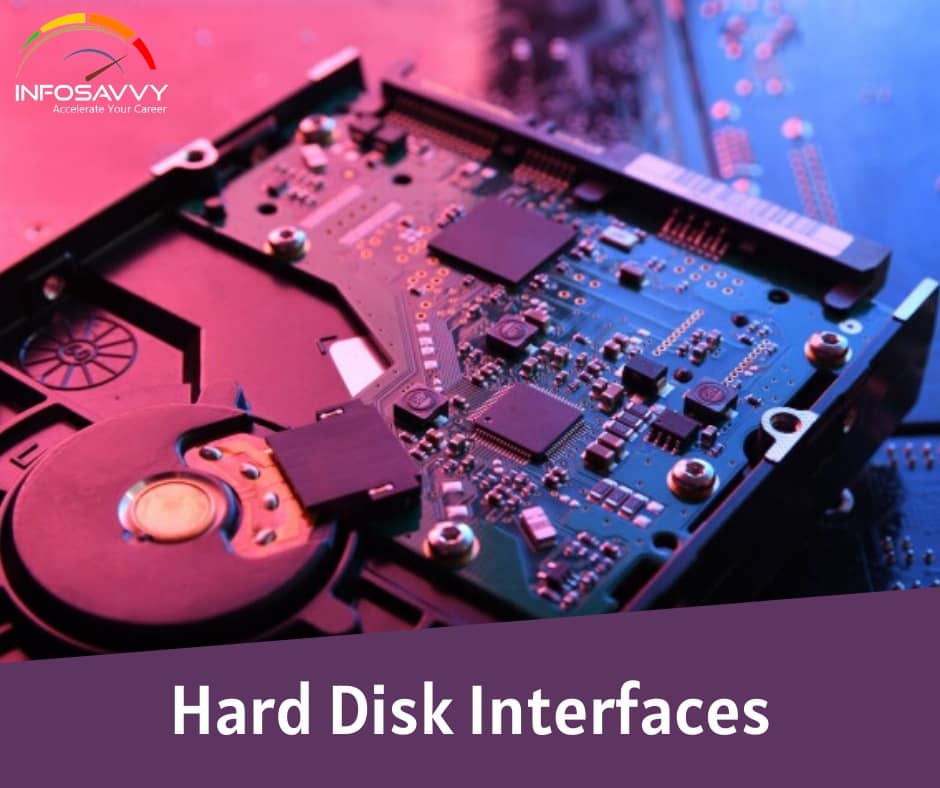
Hard Disk Interfaces in this the hard disk drive connects to the PC using an interface. There are various types of interfaces: IDE, SATA, Fiber Channel, SCSI, etc.

1. ATA DATA (IDE/EIDE)

IDE (Integrated Drive Electronics) is a standard electronic interface used between a computer motherboard’s data paths or bus and the computer’s disk storage devices, such as hard drives and CD-ROM/DVD drives. The IBM PC Industry Standard Architecture (ISA) 16-bit bus standard is base for the IDE interface, which offers connectivity in computers that use other bus standards. ATA (Advanced Technology Attachment) is the official American National Standards Institute’s (ANSI) name of Integrated Drive Electronics (IDE).

2. Parallel ATA:

PATA, based on parallel signaling technology, offers a controller on the disk drive itself and thereby eliminates the need for a separate adaptor card. Parallel ATA standards only allow cable lengths up to 46 centimeters (18 inches).

Features of PATA:

  • Relatively inexpensive
  • Easy to configure
  • Allows look-ahead caching

Related Product : Computer Hacking Forensic Investigator | CHFI

3. Enhanced Integrated Drive Electronics (EIDE)

Most computers sold today use an enhanced version of IDE called Enhanced Integrated Drive Electronics (EIDE). IDE drives connect with PCs, using an IDE host adapter card. The IDE controller in modern computers is a built-in feature on the motherboard itself. Enhanced IDE is an extension to the IDE interface that supports the ATA-2 and ATAPI standards.

Two types of Enhanced IDE sockets are present on the motherboard. A socket connects two drives, namely, 80 wire cables for fast hard drives and a 40-pin ribbon cable for CD-ROMs/DVD­RUMs.

Enhanced or Expanded IDE is a standard electronic interface, connecting a computer’s motherboard to its storage drives. EIDE can address a hard disk bigger than 528 Mbytes and allows quick access to the hard drive as well as provides support for Direct Memory Access (DMA) and additional drives like tape devices, CD-ROM, etc. While updating the computer system with bigger hard drive, insert the EIDE controller in the system card slot.

The EIDE can access drives larger than 528 Mbytes using a 28-bit Logical Block Address RBA) to indicate the actual head, sector, and cylinder locations of the disk data. The 28-bit Logical Block Address provides the information, which is enough to denote unique sectors for an 8.4 GB device.

4. Serial ATA

Serial ATA (SATA) offers a point-to-point channel between the motherboard and drive. The cables in SATA are shorter in length as compared to PATA. It uses four-wire shielded cable that can be maximum one meter in length. SATA cables are more flexible, thinner, and less massive than the ribbon cables, required for conventional PATA hard drives.

Features of SAM:

  • Operates with great speed
  • Easy to connect to storage devices
  • Easy to configure
  • Transfers data at a speed of 1.5 Gbps (SATA revision 1.0) and 6 Gbps (SATA revision 3)

Drive and motherboard connectivity through a SATA point-to-point channel is based on serial signaling technology. This technology enables data transfer of about 1.5 Gbps in a half-duplex channel mode.

Also Read : Logical & Physical Structure of a Hard Disk

5. SCSI

SCSI is a set of ANSI standard electronic interfaces that allow personal computers to communicate with peripheral hardware such as disk drives, tape drives, CD-ROM drives, printers, and scanners. Developed by Apple Computer and still used in the Macintosh, the present sets of SCSls are parallel interfaces. SCSI ports continue to come as built-in feature in various personal computers today and gather supports from all major operating systems.

In addition to faster data rates, SCSI is more flexible than earlier parallel data transfer interfaces. SCSI allows up to 7 or 15 devices (depending on the bus width) to be connected to a single SCSI port in daisy-chain fashion. This allows one circuit board or card to accommodate all the peripherals, rather than having a separate card for each device, making it an ideal interface for use with portable and notebook computers. A single host adapter, in the form of a PC card, can serve as a SCSI interface for a laptop, freeing up the parallel and serial ports for use with an external modem and printer while allowing usage of other devices in addition.

Read More : https://info-savvy.com/hard-disk-interfaces/


This Blog Article is posted by

Infosavvy, 2nd Floor, Sai Niketan, Chandavalkar Road Opp. Gora Gandhi Hotel, Above Jumbo King, beside Speakwell Institute, Borivali West, Mumbai, Maharashtra 400092

Contact us – www.info-savvy.com
CHFI

Logical & Physical Structure of a Hard Disk

 In this article explain Logical & Physical Structure of a Hard Disk there components uses.

Physical Structure of a Hard Disk

The main components of hard disk drive are:

  • Platters: These are disk like structures present on the hard disk, stacked one above the other and store the data
  • Head: It is a device present on the arm of the hard drive that reads or writes data on the magnetic platters, mounted on the surface of the drive
  • Spindle: It is the spinning shaft on which holds the platters in a fixed position such that it is feasible for the read/write arms to get the data on the disks
  • Actuator: It is a device, consisting of the read-write head that moves over the hard disk con to save or retrieve information
  • Cylinder These are the circular tracks present on the platters of the disk drive at equal distances from the center

Related Product : Computer Hacking Forensic Investigator | CHFI

Physical Structure of a Hard Disk (Cont’d)

A hard disk contains a stack of platters, circular metal disks that are mounted inside the hard disk drive and coated with magnetic material, sealed in a metal case or unit. Fixed in a horizontal or vertical position, the hard disk has electromagnetic read or write heads above and below the platters. The surface of the disk consists of a number of concentric rings called as tracks; each of these tracks has smaller partitions called disk blocks. The size of each disk block is 512 bytes (0.5 KB). The track numbering starts with zero. When the platter rotates, the heads record data in tracks. A 3.5-inch hard disk can contain about thousand tracks.

The spindle holds the platters in a fixed position such that it is feasible for the read/write arms to get the data on the disks. These platters rotate at a constant speed while the drive head, positioned close to the center of the disk, reads the data slowly from the surface of the disk compared to the outer edges of the disk. To maintain integrity of data, the head is reading at a particular period of time from any drive head position. The tracks at the outer edges of the disk have less densely populated sectors compared to the tracks close to the center of the disk.

The disk fills the space based on a standard plan. One side of the first platter contains space, reserved for hardware track-positioning information which is not available to the operating system. The disk controller uses the track-positioning information to place the drive heads in the correct sector position.

The hard disk records the data using the zoned bit recording technique, also known as multiple zone recording. This method combines the areas on the hard disk together as zones, depending on the distance from the center of the disk. A zone contains certain number of sectors per track.

Calculation of data density of disk drives is done in the following terms:

  • Track density: Refers to the number of tracks in a hard disk
  • Area density: Area density is the platters’ storage capacity in bits per square inch
  • Bit density: It is bits per unit length of track

Read More : https://info-savvy.com/logical-physical-structure-of-a-hard-disk/


This Blog Article is posted by

Infosavvy, 2nd Floor, Sai Niketan, Chandavalkar Road Opp. Gora Gandhi Hotel, Above Jumbo King, beside Speakwell Institute, Borivali West, Mumbai, Maharashtra 400092

Contact us – www.info-savvy.com

CHFI

Discribe the different types of Disk and there characterstics

In this article explain Discribe the different types of Disk and there characterstics & uses. Disk Drive is a digital data storage device that uses different storage mechanisms such as mechanical, electronic, magnetic, and optical to store the data. It is addressable and rewritable to support changes and modification of data. Depending on the type of media and mechanism of reading and writing the data, the different types of disk drives are as follows:

  • Magnetic Storage Devices: Magnetic storage devices store data using magnets to read and write the data by manipulating magnetic fields on the storage medium. These are mechanical devices with components moving to store or read the data. Few other examples include floppy disks, magnetic tapes, etc.
    In these types of hard disks, the disks inside the media rotate at high speed and heads in the disk drive read and write the data.
  • Optical Storage Devices: Optical storage devices are electronic storage media that store and read the data in the form of binary values using a laser beam. The devices use lights of different densities to store and read the data. Examples of optical storage devices include Blue-Ray discs, CDs, and DVDs,
  • Flash Memory Devices: Flash memory is a non-volatile electronically erasable and reprogrammable storage medium that is capable of retaining data even in the absence of power. It is a type of electronically erasable programmable read only memory (EEPROM). These devices are cheap and more efficient compared to other storage devices. Devices that use flash memory for data storage are USB flash drives, MP3 players, digital cameras, solid-state drives, etc.
    Few examples of flash memory are:
     BIOS chip in a computer
     Compact Flash (commonly found in digital cameras)
     Smart Media (commonly found in digital cameras)
     Memory Stick (commonly found in digital cameras)
     PCMCIA Type I and Type II memory cards found in laptops
     Memory cards for video game consoles

Related Product : Computer Hacking Forensic Investigator | CHFI

Hard Disk Drive (HDD)

Hard Disk Drive is a non-volatile, random access digital data storage device used in any computer system. The hard disk stores data in a method similar to that of a file cabinet. The user, when needed, can access the data and programs. When the computer needs the stored program or data, the system brings it to a temporary location from the permanent location. When the user or system makes changes to a file, the computer saves the file by replacing the older file with the new file. The HDD records data magnetically onto the hard disk.

The hard disks differ from each other considering various measurements such as:

  • Capacity of the hard disk
  • Interface used
  • Speed in rotations per minute
  • Seek time
  • Access time
  • Transfer time

Also Read : Writing the Investigation Report & Testifying in the Court Room

Solid-State Drive (SSD)

A Solid-State Drive (SSD) is an electronic data storage device that implements solid-state memory technology to store data similar to a hard disk drive. Solid-state is an electrical term that refers to an electronic circuit entirely built with semiconductors.

It uses two memories:

  • NAND-based SSDs: These SSID5 use solid state memory NAND microchips to store the data. Data in these microchips is in a non-volatile state and does not need any moving parts. NAND memory is non-volatile in nature and retains memory even without power.
    NAND memory was developed primarily to reduce per bit cost of data storage. However, it is still more expensive than optical memory and HDDs. NAND-based memory is widely used today in mobile devices, digital cameras, MP3 players, etc. It has a finite number of writes over the life of the device.
  • Volatile RAM-based SSDs: SSDs, based on volatile RAM such as DRAM, are used when applications require faster data access. These SSDs include either an internal chargeable battery or an external AC/DC adapter, and a backup storage. Data resides in the DRAM during data access and is stored in the backup storage in case of a power failure.

Read More : https://info-savvy.com/discribe-the-different-types-of-disk-and-there-characterstics/


This Blog Article is posted by

Infosavvy, 2nd Floor, Sai Niketan, Chandavalkar Road Opp. Gora Gandhi Hotel, Above Jumbo King, beside Speakwell Institute, Borivali West, Mumbai, Maharashtra 400092

Contact us – www.info-savvy.com